Showing posts with label xp. Show all posts

Tuesday, May 27, 2014

Remove/Reset/Change Forgotten Password for Microsoft Windows XP/Vista/7/8

There are many famous programs which can recover Microsoft Windows Admin Password such as Passcape and Ophcrack. But the tricky thing is that their using recovery method with needs bulky file size program. Here's the logic: "Why recover the lost password if you can remove/edit it?", So here I am, I will be sharing you 3mb File that can remove Windows Admin Password.

This method is also called linux bypass OFFILINE NT PASSWORD & REGISTRY EDITOR. Just use bootable USB Flash Drive or burn it on CD.

1. Download Windows Password Reset LiveCD Here.
2. Extract and Burn the ISO file on CD. Or you can mount the ISO file and copy it to your Bootable USB Flash Disk.
3. First boot your Bootable USB Flash Disk/CD
4. Press enter on the first part and Select which hark drive partition your Operating System is located.
5. Follow the text on the screen and it will guide you while resetting/removing your Admin Password.
6. After you successfully remove Windows Password, select "q" for quit.
7. and N if ask for another recovery job.
8. Congratulation..

Boot your Windows now without any forgotten password.

Saturday, September 28, 2013

Trick Windows XP/7/8 admin password easily without any software


Hello guys. Here's a new 100% working trick to hack windows password .

I know there's a lot of softwares out there to get it done . But thats not geeky & also not time consuming . The real fun is when you can hack this manually within just a few minuets .


So here are the steps to do it.


Required things:


1) Windows 98 bootable USB drive ( We will learn to make it as we proceed) .

2) Basic knowledge of DOS commands .

3) Basic knowledge of how to boot your PC from a USB drive .


Theory:


Now you may wanna know the theory behind this hack . So here's how we do it .

In windows we can change the password of the PC with command prompt very easily .

with the command line net user username password . (replace username & password with the credentials you want ) . But this can be possible only if you have admin access to the command prompt . A command prompt with admin access is called elevated command prompt . When you simply open a command prompt window it brings you to the C:\users\username directory . But in an elevated command prompt you are brought to the C:\windows\system32 directory .


So if we can start an elevated command prompt window in the windows login screen, then we can run the above said command and change the password to what we want . So the main problem is how can we do this .


There are some programs which we can run directly from the login screen. These are our keys to hack a windows password .

The programs are:

1) sethc.exe ( windows xp , windows vista )

2) narrator.exe ( windows 7 , 8 )

3) magnify.exe ( windows 7 ,8 )

There are more but these will be enough for us . In windows 7 & 8 we can access them by clicking on the " Easy of Access " button in the login screen & then selecting "narrator" or "magnifier" then "apply" & then "OK"


All these files are stored in the C:\windows\system32 folder . And also the file for command prompt is stored in this folder ( named cmd.exe ).


So if we can replace one of those above mentioned files with cmd.exe & then if we start those programs in login screen, we can get an elevated command prompt & then type the net usercommand to change the password & we can gain access to the system .


Now the question is how to replace those files with command prompt when we have no access to the system ? The answer is by using a live OS which we can boot from an external USB drive & then accessing the file system through it. Most people will suggest you to use a Ubuntu live CD . But Ubuntu is near about 800 MB in size . So I'll suggest you to use MS-DOS 98 with an external usb drive which is 3 MB in size .


Now here are the steps to make a Bootable MS-DOS 98 usb drive:


1) Download DOS 98 from the link given below .

2) Download HP USB Disk Storage Format Tool form the below link .

3) Unzip & install the HP USB Disk Storage Format Tool .

4) Unzip DOS 98.zip and extract the folders ms-dos & ntfs dos . Remember the location .

5) Plug in your USB drive ( pen drive ) in your pc . ( make sure you backed up your contents of the pen drive, because your pen drive will be formatted . )

6) Now run HP USB Disk Storage Format Tool . ( in windows 7 right click on it & run as administrator ).

7) Now on the device window select your pen drive . In my case it's kimgston data travelar... .
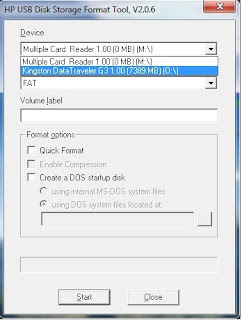


8)now in the file system select FAT . & tick both "quick format" & "Create a dos startup disk" .

9) now click on the 3 dots next to the box & select the ms-dos folder you extracted earlier . & press ok .
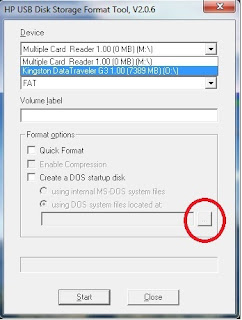
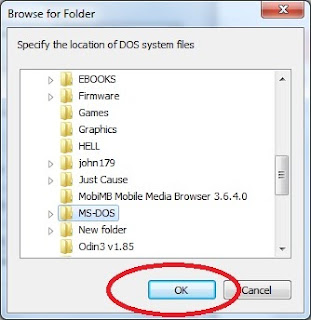


10) Now press start . Let the process complete .

11) Now copy the contents of NTFS folder in your pen drive .

Thats it . Now your bootable USB pen drive is ready .


Now here comes the main part.


Booting the target PC with this pen drive:


Switch on the target pc with the pen drive pluged in . And wait until a black ( sometime blue ) screen appears . There you will see some options like ** to enter setup , ** boot menu etc . In my case it's like F10 - to enter setup , Esc - Boot menu . Press the button which says Boot menu ( in my ps it's Escape button ) & select the pen drive from the list of available devices. Now you should see the dos window .


*Check your PC's BIOS manual for more info on accessing boot menu. Some PCs don't have the Boot menu . In such cases you need to Enter Bios setup by pressing the particular key ( in my case it's F10 ) & then change the boot device order as Removable media in the first place .


**To know more about how to change boot order of a PC follow these links or refer to the BIOS manual.


http://lifehacker.com/5991848/how-to-boot-from-a-cd-or-usb-drive-on-any-pc

http://pcsupport.about.com/od/fixtheproblem/ss/bootorderchange.htm


Real Hacking Begins Here:


If you booted correctly from the usb drive, you should now see the dos prompt. something like this with the C:\ prompt .
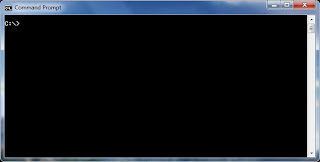


Now the first thing to do is to find out the windows instalation directory .

For this just change the drives serially , check for the windows directory in that drive with dircommand .


Your commands should look like this:

C:\> D: (press enter) --------- Changes the prompt to drive D.

D:\> dir (press enter) --------- Lists all the files and folders in the drive D .

D:\> some results with files & folders. -------- Search for the windows folder here.


You should probably find it here in the drive D . If not then change the dir again to E .


D:\> E: (press enter) --------- Changes the prompt to drive E.

E:\> dir (press enter) --------- Lists all the files and folders in the drive E.

E:\> some results with files & folders -------- Search for the windows folder here.


If not found repeat the process with F , G , H , drives serially untill you get the windows folder .

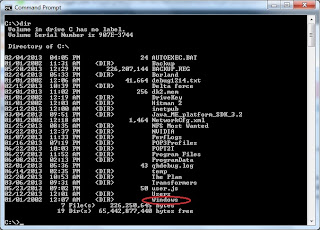
In the below image the windows folder is in C drive . We get the below result after executing the following command .

C:\> dir (press enter )


Now suppose you get the windows folder in D: drive .

You should return on the D:\> prompt automatically .


Now type the command cd windows\system32 (press enter).

You should now see D:\windows\system32> on the prompt .

Now type the following commands exactly as they are.


copy narrator.exe c: ( press enter )


copy cmd.exe c: (press enter)


del narrator.exe (press enter)


ren cmd.exe narrator.exe (press enter)


This should look like this.
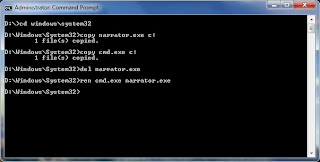


Thus we replaced the narrator.exe file with cmd.exe .


Now whenever we start the narrator process we will get the Elevated Command Prompt .


Changing The Password:

Now restart your PC normally . without the pen drive plugged in .

Now when you are on the login screen . Click on Easy of access on the left bottom corner . And tick the narrator > Apply > OK . In no time you'll get a command prompt window . Like DOS .


Now type in the command net user your_username your_new_password .

Suppose the user name is computer , then type net user computer 12345 (enter) . And the new password will be 12345 .

Now close the command prompt & enter your new password in the box & go . Bingo ! now you have access to the system .


***Note

In windows xp there's no "easy of access button" so you have to change the commands a little .


copy sethc.exe c: ( press enter )


copy cmd.exe c: (press enter)


del sethc.exe (press enter)


ren cmd.exe sethc.exe (press enter)


And then on the login screen press "shift" key five times in a row & the command prompt will appear . Least of tutorial is same for windows xp .


If i was not clear at any point please let me know to help you out in the comments section.


This hack was successfully tested on win 7 & 8 . But i hope the above said WIN XP hack will also work . Let me know if it works.


I'm posting this tutorial only for the password recovery purpose in case you forgot your windows password . I'll not be responsible for any kind of illegal usage of this tutorial .
Download links to the files:


HP USB Disk Storage Format Tool


MS-DOS 98+NTFS DOS

Monday, July 22, 2013

Windows.Loader v2.2 Daz


Currently, many steps still to ask how to crack Windows 7 easy and successful. And the answer is to use tools Windows.Loader v2.2 Daz. How much Uncle install without a key win 7 then it just dragged on, just one click, restart the Windows 7 has been activated and Good.
This is the loader application that's used by millions of people worldwide, well known for passing Microsoft's WAT (Windows Activation Technologies) and is arguably the safest Windows activation exploit ever created. The application itself injects a SLIC (System Licensed Internal Code) into your system before Windows boots; this is what fools Windows into thinking it's genuine.

Features

Can be run as a standalone application Works well with all system languages Custom OEM information can be installed Argument support for silent installs Can be used for pre-activation Application integrity checking Custom error handling Support for hidden partitions and complex setups Can work alongside Linux's GRUB or any other boot manager Works with TrueCrypt and many other types of hard drive encryption applications Add your own certificates and serials externally Offers certificate and serial installation only for users with an existing SLIC 2.1 Automated system profiling (The application matches everything up for you)

The rundown

Compatible with Windows 7 SP1 and all system updates ✔ check Will run on x86 and x64 systems ✔ check No core system files get modified ✔ check No extra processes are run so you have nothing eating at your RAM All key parts of the exploit are encrypted with a custom encryption The exploit runs before Windows so it's harder for Microsoft to prevent The exploit patches all necessary tables making activation look authentic The application will select the best profile for your system during installation Each and every user has a unique version of the exploit installed on his/her system

Supported operating systems

Windows 7 Ultimate Windows 7 Ultimate E Windows 7 Professional Windows 7 Professional E Windows 7 Home Premium Windows 7 Home Premium E Windows 7 Home Basic Windows 7 Starter Windows 7 Starter E Windows Vista Ultimate Windows Vista Business Windows Vista Business N Windows Vista Home Premium Windows Vista Home Basic Windows Vista Home Basic N Windows Vista Starter Windows Server 2008 R2: Enterprise Windows Server 2008 R2: Standard Windows Server 2008 R2: Foundation Windows Server 2008: Enterprise Windows Server 2008: Standard Windows Server 2008: Foundation Windows Small Business Server 2008

Note: You must be running build 7600 or greater for Windows 7 and Windows Server 2008 R2. Note: I don't recommend using any of the Windows 7 E editions. Note: Windows 7 N editions will only be supported when OEM SLP serials leak.

Application integrity checking? Hover your mouse over the green, amber or red icon to see detailed application information.

Note: Even if the icon is green someone might have found a way around the protection system so it's worth checking that the applications path is always the same as the location from which you launched the application. You should also check that the MD5 matches the MD5 found online.

Changes in version 2.2.1 * Added a new GRLDR * Redesigned the advanced options tab and added an option to relocate the RSDP to the EBDA * Added Seneca and Twinhead Windows 7 Professional keys * Added BenQ Windows 7 Home Premium key * Added Seneca SLIC and certificate * Other minor tweaks and fixes


Download:

Wednesday, November 28, 2012

Windows Activators!! Genuine ANY WINDOWS EDITION


This tool allow you to active a non Genuine Windows Operating System. Genuine Operating System allows you to update any latest software update produced by Windows OS. Enjoy


WIndows Activator 9.0 Supports:

Winows 95,98,NT,2000,XP,Vista,7 All Editions
Windows Server 2000,2003,2008 All Editions

Windows 7 Activator Supports All Windows 7 Versions

I Swear these Activator Are Clean

Download

Monday, November 26, 2012

Creating a Bootable Windows XP and Windows 7 or Vista in 1 USB

Today I decided to make a tutorial on how to Create a bootable Windowx XP and Windows 7 on USB Flash Drive/Pen Drive because too many of people on the web requested it. There are alot of brand new laptop that don't have DVD-ROM and only support USB Port for slim and portability purposes so this one is one of the best tool we should has on our pocket when we have something to ReFormat or ReProgram.


Tutorial Guide

 1- We are going to make a USB with Windows XP + Windows 7.

2- You need a Windows based PC to work with this tutorial, and you need to work with elevated privileges “Run as administrator” whenever needed if you are working from a Windows Vista or 7 environment.

3- You need a minimum 4 GB USB 2.0 or 8 GB USB flash drive(depende sa size of both OS gagamitin)

4- You need to download the following files from (HERE) tapos EXTRACT nyo onto your desktop: - WinSetupFromUSB-Modified (11.3 MB) - bootfiles ( 658 bytes )

5- Open folder (WinSetupFromUSB-Modified) and right click on WinSetupFromUSB_0-2-3.exe and
choose to “Run as administrator” you would see the following , Press OK:
   
 6- Make sure you follow what you see in below before pressing on “RMPrep USB” button:  
 7- RMPREPUSB v.2.0.811 tool will pop up, so make sure everything is like what you see below before you press the “Prepare Drive” button.
 
8- Press “OK “on the next screen.
   
 9- Press “OK” on the next screen also:Note: (Sometimes the image Below will not appear just skip to the next step)
 
   
 10- Exit the PREPUSB tool:
   
 11- Now Insert the Windows XP CD into the drive bay and follow what you see below, my drive is H, yours maybe different:


 12- Now we will insert the Windows 7 installation DVD into the drive bay and follow below:
 

 13- Now OPEN folder (bootfiles) that you extracted from the RAR file you downloaded early in step 4 above, and copy all its contents to the USB thumb drive and replace all existing files there:
 
 
 14- Now you've DONE ...the USB drive is ready to be tested,boot from a USB device.
 

 “Win Setup from USB” tool, that worked perfectly nice, with no errors of any kind, and we are going to use it in this tutorial" PS: If you want to input Windows Vista instead of Windows 7 on USB you should use Vista installation media from step 12 onwards , and you should know that with this method you can’t input all 3 Windows (XP/ Vista / 7), that will not work, only 2 at a time you can choose . Enjoy and Good Luck!!
